Spreadsheets power global finance, and learning how to build a percentage calculator in Excel allows you to analyze budgets, calculate taxes, and assess profit margins effortlessly.
The Fundamental Rule of Excel Percentages
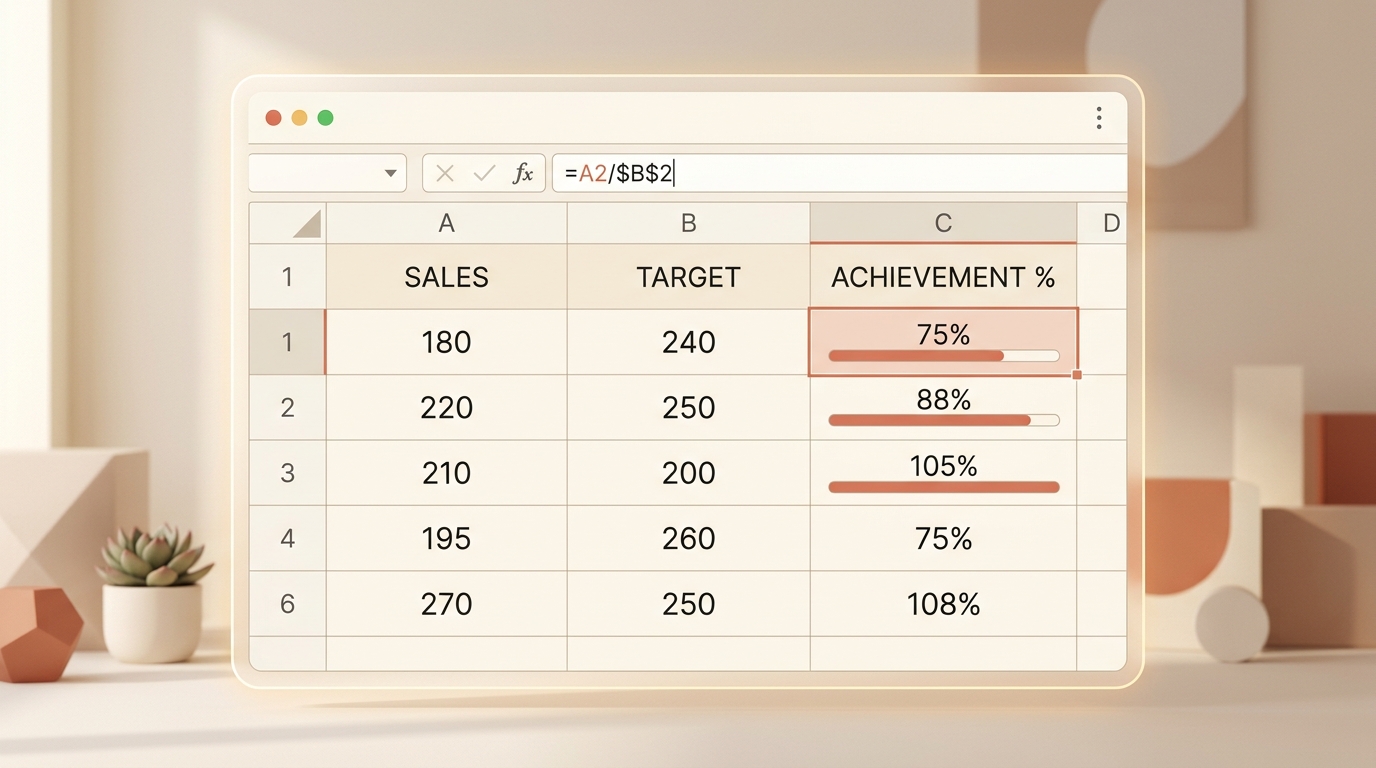
Excel stores percentages as underlying decimal fractions between 0 and 1. When you enter 25%, Excel stores 0.25 internally. When you apply the Percentage format, Excel handles visual multiplication for you.
Formula 1: Calculate Percentage of a Total
Suppose column A contains departmental expenses and cell A10 contains the total sum (=SUM(A2:A9)). To find each department’s share:
Enter in cell B2: =A2/$A$10. The dollar signs freeze cell A10 so you can drag the formula down.
If you need quick verification outside Excel, test your figures on our Ratio Tool.
Formula 2: Percentage Increase or Decrease
To compute growth between last year’s sales (A2) and this year’s sales (B2):
Enter: =(B2 - A2) / A2, then format as Percentage. If sales increased from 500 to 650, Excel will cleanly display 30.0%.
Formula 3: Applying a Percentage to an Amount
To calculate a 7.5% sales tax on an order of $120 in cell A2: =A2 * 0.075 (or =A2 * 7.5%). To calculate total price with tax: =A2 * (1 + 0.075).
Validate your calculations with our online Percentage Calculator.
Excel Shortcuts & Auto-Formatting Tips
Working efficiently with percentages in Microsoft Excel and Google Sheets requires understanding how spreadsheet software stores quantitative values internally:
- Keyboard Shortcut: Highlight any cell or range and press
Ctrl + Shift + %(Windows) orCmd + Shift + %(Mac) to apply the percentage format immediately. - Internal Decimal Storage: Remember that Excel stores
25%as0.25. If you type=A2 * 25%, Excel performs=A2 * 0.25under the hood. - Adjusting Decimal Places: Use the Increase Decimal and Decrease Decimal buttons on the Home ribbon to display either round percentages (e.g.,
15%) or high-precision financial ratios (e.g.,14.85%).
For instant verification without opening a spreadsheet, run your numbers through our free percentage calculator.